How it works
Invite by email
From Pro, each invite is a link for the person you invited.
Give a role
Owner, Admin, Editor or Viewer.
One workspace per client
Keep up to 10, and hand one over when the work is done.
Four roles, plainly
Every member of a workspace has one of four roles. Owners can do everything, including billing, adding or removing owners, and deleting the workspace. Admins manage members, the workspace's settings and its templates, and can move projects out. Editors create, change and publish projects. Viewers see projects, previews and analytics, and change nothing.
Roles decide what each person can change. There are no seat fees: each plan includes its people, the owner and invitations still open counted. Free and Starter are for the owner alone; Pro includes 3 people, Studio 10 and Agency 25.
The rules are strict where it matters. Admins manage Admins, Editors and Viewers, but only Owners can make someone an Owner or remove one.
Inviting people
On Pro and above, invite someone by email with the role they should have. They receive a link to join, which works for seven days. If they do not have a Briks account yet, they create one with the same email address.
Until it is used, an invitation can be taken back. Once the seven days pass, it expires, and you can send a new one.
Roles can be changed later as people's work changes, within the same rules: Admins for Admins, Editors and Viewers, and Owners for Owners.
A workspace per client, and handing one over
You can keep up to 10 workspaces, each with its own projects, members and media library. Agencies and freelancers use this to keep each client apart: a client's people see their own workspace and nothing else.
When the work is done, hand the workspace over: invite the client as an Owner, which works on any plan, even one with no room for more people. Then leave it, or stay on if you look after the site for them. There is no separate handover button; the roles do the job.
Agents see only their own workspace too, enforced in the database, so one client's work never reaches another's.
Compared with sharing one login
Many small businesses share one password for their website. It works until someone leaves, or until you need to give a freelancer access for a week.
With roles, each person signs in as themselves, with only the rights their work needs. A Viewer can read the analytics with no risk of changing a page, and an Editor can publish changes without seeing billing.
When someone leaves, remove them from the workspace and their access ends, with no password to change for everyone else. Messages from your site's forms and chat also stop reaching a creator who has left: they go to the workspace's first Owner instead.
Teams and workspaces in practice
Three example businesses, and how each would use it. Where a site is pictured, it is a sample Briks built for an example business, not a customer.
- 01Brand studio
A brand studio with a workspace per client
A brand studio keeps a workspace for each active client. Its designers are Editors, the founder is the Owner, and each client's marketing lead is a Viewer who can see previews and analytics but change nothing.
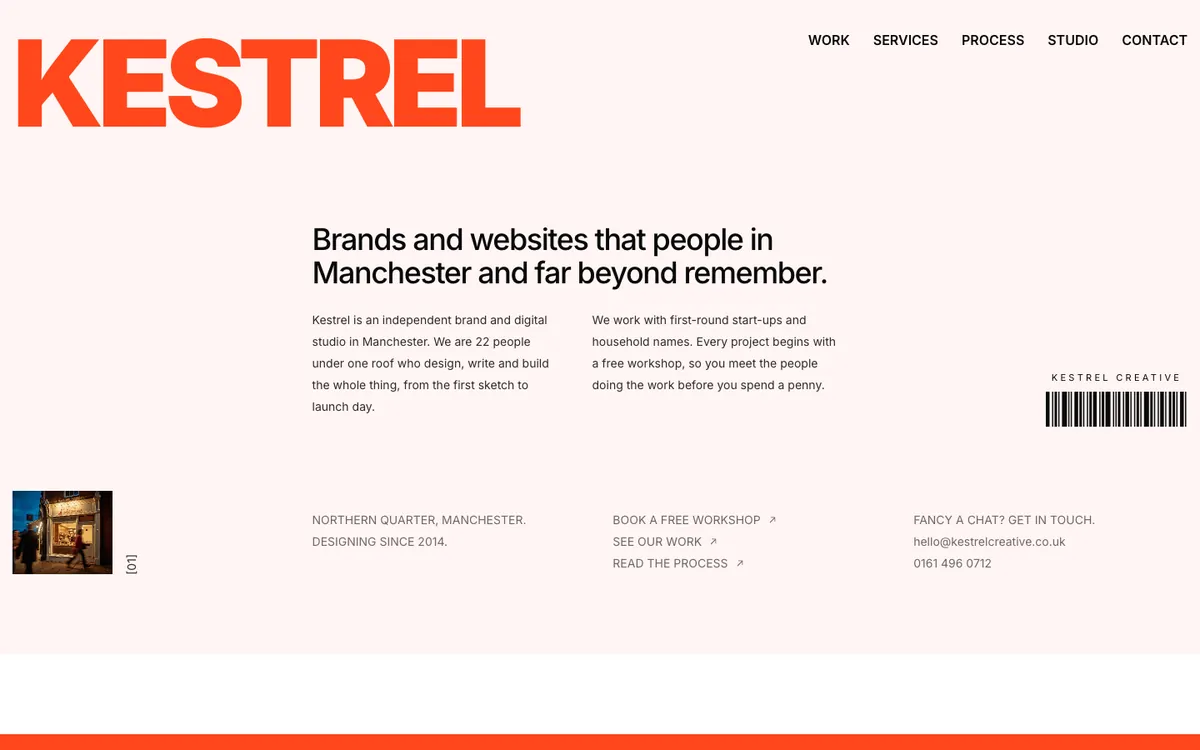
Kestrel Creative is a sample site Briks built for an example brand and digital studio, not a customer. Open the sample - 02Web design studio
Handing a finished site to its owner
A web design studio finishes a site for a florist. It invites the florist by email, makes her an Owner of the workspace, and leaves once she is settled in. The site, its domain and its analytics stay with her.
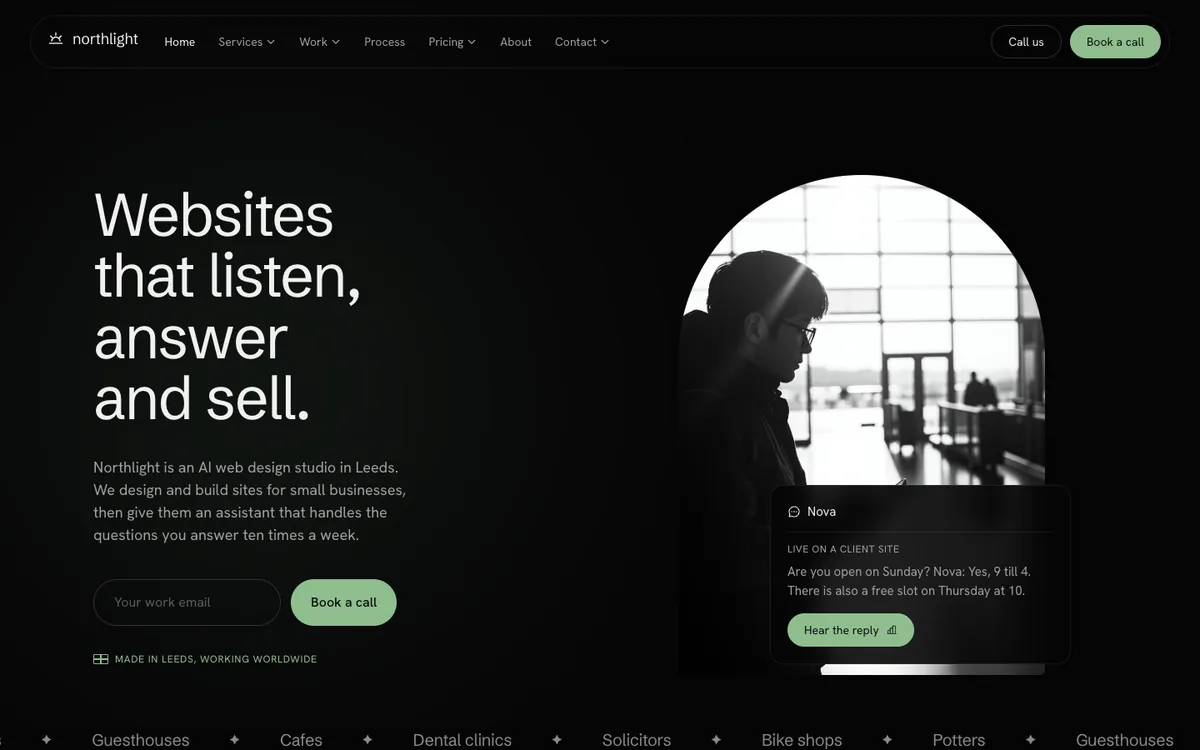
Northlight Studio is a sample site Briks built for an example web design studio, not a customer. Open the sample - 03Psychology practice
A manager, a writer and an accountant
A practice manager is the Owner. A part-time writer joins as an Editor to keep the therapists' pages up to date, and the practice's accountant joins as a Viewer to look at the analytics.
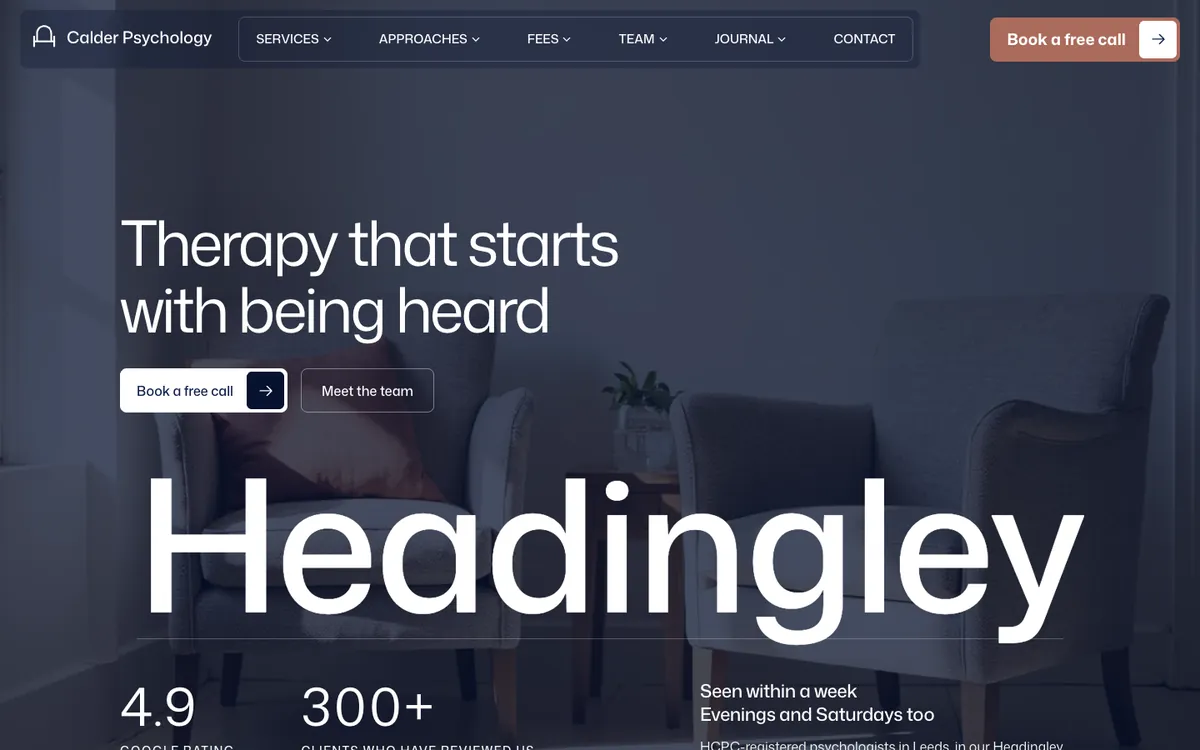
Calder Psychology is a sample site Briks built for an example psychology practice, not a customer. Open the sample
What you get
- Owner, Admin, Editor and Viewer roles
- Invites by email link, valid for seven days
- Up to 10 workspaces per person
- No seat fees: 3 people on Pro, 10 on Studio, 25 on Agency